顯示具有 Programs-C# 標籤的文章。 顯示所有文章

2016年6月2日 星期四

C#-examination-e

題目要求:
魔術方塊,六種顏色以文字表之。
圖片共十二張:點我下載

##ReadMore##


using System;
using System.Collections.Generic;
using System.ComponentModel;
using System.Data;
using System.Drawing;
using System.Linq;
using System.Text;
using System.Windows.Forms;

using AForge.Imaging.Filters;
using AForge.Imaging.Formats;
using AForge.Imaging;
using System.Drawing.Imaging;
using System.Diagnostics;
using AForge.Math;

namespace examination_e
{
    public partial class Form1 : Form
    {
        Bitmap srcImg, cropImg, confirmImg;
        String knowColor;

        public Form1()
        {
            InitializeComponent();
        }

        private void button1_Click(object sender, EventArgs e)
        {
            openFileDialog1.Filter = "All File(*.*)|*.*";
            if (openFileDialog1.ShowDialog() == DialogResult.OK)
            {
                srcImg = ImageDecoder.DecodeFromFile(openFileDialog1.FileName);
                pictureBox1.Image = srcImg;
            }
        }

        private void button2_Click(object sender, EventArgs e)
        {
            listBox1.Items.Clear();
            //因為每張魔術方塊圖大小、位置不定,慢慢抓最大最小值縮減掃描範圍
            int catchX = 250;
            int catchY = 130;
            int catchWidth = 650;
            int catchHeight = 500;

            //第一階段截取圖片,因為每張魔術方塊圖大小、位置不定先截個自訂值(畫 rectangle 慢慢測試得來的)
            Crop cropFilter = new Crop(new Rectangle(catchX, catchY, catchWidth, catchHeight));
            Bitmap scanImg = cropFilter.Apply(srcImg);
            pictureBox3.Image = scanImg;

            Graphics g = Graphics.FromImage(srcImg);
            g.DrawRectangle(new Pen(Color.Red), catchX - 1, catchY - 1, catchWidth + 2, catchHeight + 2);
            pictureBox2.Image = srcImg;

            //Color 陣列用來儲存第一階段截取範圍內全部 colorPixel,容器 +10 避免誤差,造成超出陣列
            Color[,] colorPixel = new Color[catchX + catchWidth + 10, catchY + catchHeight + 10];

            //初始化,魔術方塊區域之座標最大、最小值
            int max_x = 0, max_y = 0, min_x = catchX + catchWidth, min_y = catchY + catchHeight;

            //開始取得第一階段截取範圍全部的 colorPixel
            for (int i = catchX; i < catchX + catchWidth; i++)
            {
                for (int j = catchY; j < catchY + catchHeight; j++)
                {
                    colorPixel[i, j] = srcImg.GetPixel(i, j);
                }
            }

            //掃描第一階段截取之範圍, 取得非黑色的座標之最大、最小座標 max_x, max_y, min_x, min_y
            for (int i = catchX; i < catchX + catchWidth; i++)
            {
                for (int j = catchY; j < catchY + catchHeight; j++)
                {
                    // 設 RGB < 90 為黑色,非魔術方塊區域。
                    if (colorPixel[i, j].R < 90 && colorPixel[i, j].G < 90 && colorPixel[i, j].B < 90) { /*nothing to do*/ }
                    // 第一層過濾,非黑色,則有可能是彩色圖,但有誤差,所以還要第二層過濾。
                    else
                    {
                        // 設 RGB < 90 為黑色,非魔術方塊區域。
                        if (colorPixel[i - 2, j - 2].R < 90 && colorPixel[i - 2, j - 2].G < 90 && colorPixel[i - 2, j - 2].B < 90) { /* nothing to do */ }
                        //第二層過濾,判斷座標 [i-2, j-2] colorPixel 必需不是黑色 (即捕捉連續彩色→但只能捉到魔術方塊左上角座標,右下座標仍有誤差)
                        else
                        {
                            // 設 RGB < 90 為黑色,非魔術方塊區域。
                            if (colorPixel[i + 2, j + 2].R < 90 && colorPixel[i + 2, j + 2].G < 90 && colorPixel[i + 2, j + 2].B < 90) { /* nothing to do */ }
                            //第三層過濾,判斷座標 [i+2, j+2] colorPixel 必需不是黑色 (即捕捉連續彩色→測試後可以正確抓到魔術方塊完整範圍)
                            else
                            {
                                // 抓魔術方塊區域之座標最大、最小值
                                if (max_x < i)
                                    max_x = i;
                                if (max_y < j)
                                    max_y = j;
                                if (min_x > i)
                                    min_x = i;
                                if (min_y > j)
                                    min_y = j;
                            }

                        }
                    }
                }
            }

            //得到魔術方塊區域之最大、最小座標 max_x, max_y, min_x, min_y,算差值得到魔術方塊之 Height= calcH, Width=calcW
            int calcW = max_x - min_x;
            int calcH = max_y - min_y;

            //做記號至 srcImg 測試確認用
            g.DrawRectangle(new Pen(Color.Red), min_x, min_y, calcW, calcH);
            textBox1.Text = "BottomRight=(" + max_x + ", " + max_y + ")";
            textBox2.Text = "TopLeft=(" + min_x + ", " + min_y + ")";
            textBox3.Text = "width=" + calcW + ", height=" + calcH;

            //第二階段截取圖片,得到完整魔術方塊的區域 = cropImg
            Crop cropFilter2 = new Crop(new Rectangle(min_x, min_y, calcW, calcH));
            cropImg = cropFilter2.Apply(srcImg);

            //魔術方塊的區域印至 pictureBox3 再確認
            pictureBox3.Image = cropImg;

            /*
            //手動測試用
            int jjj = 0;
            int iii = 2;
            Crop cropFilterTest = new Crop(new Rectangle(iii * calcW / 3, jjj * calcH / 3, calcW / 3, calcH / 3));
            confirmImg = cropFilterTest.Apply(cropImg);
            pictureBox4.Image = confirmImg;
             */

            //掃描魔術方塊區域
            for (int jj = 0; jj < 3; jj++)
            {
                for (int ii = 0; ii < 3; ii++)
                {
                    //第三階段截取,割成 3×3, 每一格單位: Width=calcH/3, Height=calcH/3,以 for-loop 掃描 
                    Crop cropFilter3 = new Crop(new Rectangle(ii * calcW / 3, jj * calcH / 3, calcW / 3, calcH / 3));
                    confirmImg = cropFilter3.Apply(cropImg);

                    //傳送單塊顏色中心點之 RGB 判別顏色
                    Color confirmPixel = confirmImg.GetPixel(confirmImg.Width / 2, confirmImg.Height / 2);
                    //寫一個 function confirmColor 內有色表做顏色確認
                    confirmColor(confirmPixel.R, confirmPixel.G, confirmPixel.B);
                    listBox1.Items.Add("(" + jj + ", " + ii + ") = " + knowColor);
                    //listBox1.Items.Add("R,G,B = " +confirmPixel.R + "," + confirmPixel.G + "," + confirmPixel.B);
                    listBox1.Items.Add("");
                }
                listBox1.Items.Add("-----------------");
            }
            pictureBox2.Image = srcImg;     
        }

        public void confirmColor(int R, int G, int B)
        {
            //Blue
            if (R < 40 && G < 50 && B > 70 && B < 150)
                knowColor = "Blue";
            //Yellow
            else if (R > 200 && G > 170 && B > 50 && B < 96)
                knowColor = "Yellow";
            //Green
            else if (R < 80 && G > 50 && G < 160 && B > 40 && B < 100)
                knowColor = "Green";
            //Orange
            else if (R > 175 && G > 55 && G < 115 && B < 68)
                knowColor = "Orange";
            //Red
            else if (R > 100 && R < 200 && G < 55 && B < 50)
                knowColor = "Red";
            //White
            else if (R > 170 && G > 179 && B > 170)
                knowColor = "White";
            else
            {
                knowColor = "unknow";
            }
        }
    }
}

C#-examination-d

題目要求:
使用textbox show出各個blob的中心點座標
圖片:1-1.bmp

##ReadMore##


using System;
using System.Collections.Generic;
using System.ComponentModel;
using System.Data;
using System.Drawing;
using System.Linq;
using System.Text;
using System.Windows.Forms;

using AForge.Imaging;
using AForge.Imaging.Formats;
using AForge.Imaging.Filters;
using AForge.Math;
using AForge.Video;

namespace examination_d
{
    public partial class Form1 : Form
    {
        Bitmap srcImg;

        public Form1()
        {
            InitializeComponent();
        }

        private void button1_Click(object sender, EventArgs e)
        {
            srcImg = ImageDecoder.DecodeFromFile("1-1.bmp");
            pictureBox1.Image = srcImg;
        }

        private void button2_Click(object sender, EventArgs e)
        {
            int largestarea, ii, blobcount, totalarea, avearea;
            Grayscale grayFilter = new Grayscale(0.2125, 0.7154, 0.0721);
            Bitmap grayImg = grayFilter.Apply(srcImg);
            pictureBox2.Image = grayImg;

            Threshold thresFilter = new Threshold(254);
            Bitmap bimage = thresFilter.Apply(grayImg);
            pictureBox3.Image = bimage;

            // create an instance of blob counter algorithm
            BlobCounterBase bc = new BlobCounter();
            // set filtering options
            bc.FilterBlobs = true;
            bc.MinWidth = 5;
            bc.MinHeight = 5;
            // set ordering options
            bc.ObjectsOrder = ObjectsOrder.Size;
            // process binary image
            bc.ProcessImage(bimage);
            Blob[] blobs = bc.GetObjectsInformation();
            // extract the biggest blob

            largestarea = blobs[0].Area;
            textBox1.Text = largestarea.ToString();
            blobcount = bc.ObjectsCount;
            textBox2.Text = bc.ObjectsCount.ToString();
            textBox7.Text = blobs[0].CenterOfGravity.ToString();

            totalarea = 0;
            for (ii = 0; ii < blobcount; ii++)
            {
                totalarea = totalarea + blobs[ii].Area;

                listBox1.Items.Add(blobs[ii].Area.ToString());

            }

            for (ii = 0; ii < blobcount; ii++)
            {
                listBox2.Items.Add("blobs[" + ii + "] = (" + Convert.ToInt16(blobs[ii].CenterOfGravity.X).ToString() + ", " + Convert.ToInt16(blobs[ii].CenterOfGravity.Y).ToString() + ")");
            }

            textBox4.Text = totalarea.ToString();

            avearea = totalarea / blobcount;
            textBox5.Text = avearea.ToString();

            Invert filterinv = new Invert();
            Bitmap invimg = filterinv.Apply(bimage);
            pictureBox4.Image = invimg;

            // create filter
            Subtract filtersub = new Subtract(invimg);
            // apply the filter
            Bitmap blobimg = filtersub.Apply(grayImg);
            pictureBox5.Image = blobimg;


            // gather statistics
            ImageStatistics stat = new ImageStatistics(blobimg);
            // get red channel's histogram
            Histogram gray = stat.Gray;
            int blobimgarea = stat.PixelsCountWithoutBlack;
            double blobmean = gray.Mean * blobimg.Height * blobimg.Width / blobimgarea;
            textBox6.Text = blobmean.ToString();

        }

    }
}

C#-examination-c

題目要求:
算板手(p5)的面積與中間寬度
圖片:p5.jpg

##ReadMore##


using System;
using System.Collections.Generic;
using System.ComponentModel;
using System.Data;
using System.Drawing;
using System.Linq;
using System.Text;
using System.Windows.Forms;
using AForge.Imaging;
using AForge.Imaging.Filters;
using AForge.Imaging.Formats;
using AForge.Math;

namespace examination_c
{
    public partial class Form1 : Form
    {
        Bitmap srcImg, tempImg;
        int x = 400, y1 = 100, y2 = 500;

        public Form1()
        {
            InitializeComponent();
        }

        private void button1_Click(object sender, EventArgs e)
        {
            srcImg = ImageDecoder.DecodeFromFile("p5.jpg");
            tempImg = new Bitmap(srcImg);
            pictureBox1.Image = srcImg;
        }

        private void button2_Click(object sender, EventArgs e)
        {
            Grayscale grayFilter = new Grayscale(0.2125, 0.7154, 0.0721);
            tempImg = grayFilter.Apply(tempImg);

            OtsuThreshold otsuFilter = new OtsuThreshold();
            tempImg = otsuFilter.Apply(tempImg);

            Invert invFilter = new Invert();
            tempImg = invFilter.Apply(tempImg);

            FillHoles holeFilter = new FillHoles();
            holeFilter.MaxHoleHeight = 100;
            holeFilter.MaxHoleWidth = 100;
            holeFilter.CoupledSizeFiltering = false;
            tempImg = holeFilter.Apply(tempImg);

            pictureBox2.Image = tempImg;
        }

        private void button3_Click(object sender, EventArgs e)
        {
            Graphics g = Graphics.FromImage(srcImg);
            g.DrawLine(new Pen(Color.Red), new Point(x, y1), new Point(x, y2));
            pictureBox1.Image = srcImg;
        }

        private void button4_Click(object sender, EventArgs e)
        {
            Bitmap imgtwo = new Bitmap(tempImg);
            Graphics g2 = Graphics.FromImage(imgtwo);

            int[,] point = new int[x + 5, y2 + 5];
            int count = 0;
            int[] value = new int[2];

            for (int y = y1; y < y2; y++)
            {
                Color pixelColor = imgtwo.GetPixel(x, y);
                point[x, y] = pixelColor.R;
            }

            for (int y = y1; y < y2; y++)
            {
                if (point[x, y] < 20)
                {
                    if (point[x, y] != point[x, y - 1] || point[x, y] != point[x, y + 1])
                    {
                        value[count] = y;
                        count++;
                    }
                }
            }

            listBox1.Items.Add("第一點座標 = (" + x + ", " + value[0] + ")");
            listBox1.Items.Add("第二點座標 = (" + x + ", " + value[1] + ")");
            listBox1.Items.Add("板手寬度 = " + (value[1] - value[0]).ToString());
            g2.DrawLine(new Pen(Color.Red), new Point(x, value[0]), new Point(x, value[1]));
            pictureBox2.Image = imgtwo;
        }

        private void button5_Click(object sender, EventArgs e)
        {
            // create filter
            BlobsFiltering filter = new BlobsFiltering();
            // configure filter
            filter.CoupledSizeFiltering = true;
            filter.MinWidth = 1;
            filter.MinHeight = 1;
            // apply the filter
            Bitmap dstImage = filter.Apply(tempImg);
            //pictureBox2.Image = dstImage;


            BlobCounterBase bc = new BlobCounter();
            bc.FilterBlobs = true;
            bc.MinWidth = 1;
            bc.MinHeight = 1;
            bc.ObjectsOrder = ObjectsOrder.Area;

            bc.ProcessImage(dstImage); // process binary image
            Blob[] blobs = bc.GetObjectsInformation();

            textBox1.Text = "Blob Count = " + bc.ObjectsCount.ToString();//總個數

            int totalarea = 0;
            for (int ii = 0; ii < bc.ObjectsCount; ii++)
            {
                totalarea = totalarea + blobs[ii].Area;
                listBox2.Items.Add("Blob[" + ii + "] = " + blobs[ii].Area.ToString());
            }
            listBox2.Items.Add("Total Area = " + totalarea);
        }
    }
}

C#-examination-b

題目要求:
掃描Bracket1圖片的 (a)兩個寬度與 (b)中間空隙之寬度
圖片:Bracket1.bmp

##ReadMore##


using System;
using System.Collections.Generic;
using System.ComponentModel;
using System.Data;
using System.Drawing;
using System.Linq;
using System.Text;
using System.Windows.Forms;
using AForge.Imaging;
using AForge.Imaging.Filters;
using AForge.Imaging.Formats;

namespace examination_b
{
    public partial class Form1 : Form
    {
        Bitmap srcImg, tempImg, bwImg;

        int x = 400, y1 = 100, y2= 400;
        int[] y_value = new int[4];

        public Form1()
        {
            InitializeComponent();
        }

        private void button1_Click(object sender, EventArgs e)
        {
            srcImg = ImageDecoder.DecodeFromFile("Bracket1.bmp");
            tempImg = new Bitmap(srcImg);
            pictureBox1.Image = srcImg;
        }

        private void button2_Click(object sender, EventArgs e)
        {
            Graphics g = Graphics.FromImage(srcImg);
            g.DrawLine(new Pen(Color.Red), new Point(x, y1), new Point(x, y2));

            pictureBox1.Image = srcImg;
        }

        private void button3_Click(object sender, EventArgs e)
        {
            Grayscale grayFilter = new Grayscale(0.2125, 0.7154, 0.0721);
            Bitmap grayImg = grayFilter.Apply(tempImg);

            OtsuThreshold otsuFilter = new OtsuThreshold();
            bwImg = otsuFilter.Apply(grayImg);

            pictureBox2.Image = bwImg;
        }

        private void button4_Click(object sender, EventArgs e)
        {
            int[,] point = new int[x+5, y2+5];
            int count = 0;

            for (int y = y1; y < y2; y++)
            {
                Color pixelColor = bwImg.GetPixel(x, y);
                point[x, y] = pixelColor.R;
            }

            for (int y = y1; y < y2; y++)
            {
                if (point[x, y] < 20)
                {
                    if (point[x, y] != point[x, y - 1] || point[x, y] != point[x, y + 1])
                    {
                        y_value[count] = y;
                        count++;
                        listBox1.Items.Add("(" + x + ", " + y + ")");
                    }
                }
            }
        }

        private void button5_Click(object sender, EventArgs e)
        {
            Bitmap imgtwo = new Bitmap(bwImg);
            Graphics g2 = Graphics.FromImage(imgtwo);

            g2.DrawLine(new Pen(Color.Yellow), new Point(x, y_value[0]), new Point(x, y_value[1]));
            listBox2.Items.Add("上面寬度(Yellow) = " + (y_value[1] - y_value[0]).ToString());

            g2.DrawLine(new Pen(Color.Purple), new Point(x, y_value[1]), new Point(x, y_value[2]));
            listBox2.Items.Add("中間空隙(Purple) = " + (y_value[2] - y_value[1]).ToString());

            g2.DrawLine(new Pen(Color.Green), new Point(x, y_value[2]), new Point(x, y_value[3]));
            listBox2.Items.Add("上面寬度(Green) = " + (y_value[3] - y_value[2]).ToString());

            pictureBox2.Image = imgtwo;
        }
    }
}

C#-examination-a

題目要求:
將圖切成 3*5 份去掃描,將對比最高的圖顯示出來 (找瑕疵)
圖片:L02.jpg


##ReadMore##

using System;
using System.Collections.Generic;
using System.ComponentModel;
using System.Data;
using System.Drawing;
using System.Linq;
using System.Text;
using System.Windows.Forms;

using AForge.Imaging.Formats;
using AForge.Imaging.Filters;
using System.Diagnostics;
using AForge.Imaging;
using AForge.Math;

namespace examination_a
{
    public partial class Form1 : Form
    {
        Bitmap srcImg, grayImg, cropImg;

        public Form1()
        {
            InitializeComponent();
        }

        private void button1_Click(object sender, EventArgs e)
        {
            srcImg = ImageDecoder.DecodeFromFile("L02.jpg");
            pictureBox1.Image = srcImg;
        }

        private void button2_Click(object sender, EventArgs e)
        {
            Crop cropFilter = new Crop(new Rectangle(1, 1, 2560, 2560));
            Bitmap templateImg = cropFilter.Apply(srcImg);

            Grayscale grayFilter = new Grayscale(0.2125, 0.7154, 0.0721);
            grayImg = grayFilter.Apply(templateImg);

            pictureBox3.Image = grayImg;
        }

        private void button3_Click(object sender, EventArgs e)
        {
            Graphics g = Graphics.FromImage(srcImg);
            Stopwatch stopWatch = new Stopwatch();
            stopWatch.Reset();
            stopWatch.Start();

            double maxStdDev = -1;
            int ii = 0, jj = 0;

            for (int i = 0; i < 5; i++)
            {
                for (int j = 0; j < 3; j++)
                {
                    Crop matchCropFilter = new Crop(new Rectangle(i * 512, j * 512, 512, 512));
                    cropImg = matchCropFilter.Apply(grayImg);

                    g.DrawRectangle(new Pen(Color.White), i * 512, j * 512, 512, 512);

                    ImageStatistics stat = new ImageStatistics(cropImg);
                    Histogram gray = stat.Gray;

                    listBox1.Items.Add("(" + i + ", " + j + ") = " + gray.StdDev.ToString());

                    if (gray.StdDev > maxStdDev)
                    {
                        maxStdDev = gray.StdDev;
                        ii = i;
                        jj = j;
                    }
                }
            }

            g.DrawRectangle(new Pen(Color.Red), ii * 512, jj * 512, 512, 512);
            textBox2.Text = maxStdDev.ToString();
            pictureBox2.Image = srcImg;

            TimeSpan ts = stopWatch.Elapsed;
            textBox1.Text = ts.ToString();
        }
    }
}

C#-examination-4

題目要求:

  • button1: 讀圖 lena 與 lena_2
  • button2: 求 lena 與 lena_2之差異 difference
  • button3: 將差異轉成灰階圖
  • button4: 利用影像增強手法將 button3 之差異強化
##ReadMore##

比較圖一:lena


比較圖二:lena_2


using System;
using System.Collections.Generic;
using System.ComponentModel;
using System.Data;
using System.Drawing;
using System.Linq;
using System.Text;
using System.Windows.Forms;
using AForge.Imaging;
using AForge.Imaging.Formats;
using AForge.Imaging.Filters;
using AForge.Video;
using System.Diagnostics;
using System.Drawing.Imaging;
using AForge.Math;

namespace examination_4
{
    public partial class exam4 : Form
    {
        Bitmap img1, img2, catchImg, grayImg;
        

        public exam4()
        {
            InitializeComponent();
        }

        private void button1_Click(object sender, EventArgs e)
        {
            openFileDialog1.Filter = "所有檔案(*.*)|*.*";
            if (openFileDialog1.ShowDialog() == DialogResult.OK)
            {
                img1 = ImageDecoder.DecodeFromFile(openFileDialog1.FileName);
                pictureBox1.Image = img1;
            }
        }

        private void button2_Click(object sender, EventArgs e)
        {
            openFileDialog2.Filter = "所有檔案(*.*)|*.*";
            if (openFileDialog2.ShowDialog() == DialogResult.OK)
            {
                img2 = ImageDecoder.DecodeFromFile(openFileDialog2.FileName);
                pictureBox2.Image = img2;
            }
        }

        private void Form1_Load(object sender, EventArgs e)
        {
            img1 = (Bitmap)pictureBox1.Image;
            img2 = (Bitmap)pictureBox2.Image;
        }

        private void button3_Click(object sender, EventArgs e)
        {
            // 取兩圖長、寬最小值
            int imgWidth = Math.Min(img1.Width, img2.Width);
            int imgHeight = Math.Min(img1.Height, img2.Height);
            int minX = imgWidth;
            int minY = imgHeight;
            int maxX = 0;
            int maxY = 0;

            // 比較的 Pixel 範圍
            for (int x = 0; x < imgWidth; x++)
            {
                for (int y = 0; y < imgHeight; y++)
                {
                    // 比較兩圖 Pixel
                    if(img1.GetPixel(x,y).Equals(img2.GetPixel(x,y)))
                    {
                        // 相同 Pixel ,維持原圖                        
                    }
                    else
                    {
                        // 不相同

                        // 取差異圖最左上點
                        if (minX > x)
                            minX = x;
                        if (minY > y)
                            minY = y;

                        // 取差異圖最右下點
                        if (maxX < x)
                            maxX = x;
                        if (maxY < y)
                            maxY = y;
                    }
                }
            }
            
            catchDiff(minX, minY, maxX, maxY);
            drawDiffFrame(minX, minY, maxX, maxY);

            pictureBox1.Image = img1;
            pictureBox2.Image = img2;
        }

        // 補捉兩圖不同點於 pictureBox3
        private void catchDiff(int topLeft_X, int topLeft_Y, int bottomRight_X, int bottomRight_Y)
        {
            Crop cropFilter = new Crop(new Rectangle(topLeft_X - 5, topLeft_Y - 5, bottomRight_X - topLeft_X + 10, bottomRight_Y - topLeft_Y + 10));
            catchImg = cropFilter.Apply(img2);
            pictureBox3.Image = catchImg;
        }

        // 於原圖及比對圖畫出框,框出差異
        private void drawDiffFrame(int topLeft_X, int topLeft_Y, int bottomRight_X, int bottomRight_Y)
        {
            using (Graphics g = Graphics.FromImage(img1))
            {
                g.DrawRectangle(new Pen(Color.Red), topLeft_X - 6, topLeft_Y - 6, bottomRight_X - topLeft_X + 12, bottomRight_Y - topLeft_Y + 12);
            }
            using (Graphics g = Graphics.FromImage(img2))
            {
                g.DrawRectangle(new Pen(Color.Red), topLeft_X - 6, topLeft_Y - 6, bottomRight_X - topLeft_X + 12, bottomRight_Y - topLeft_Y + 12);
            }
        }

        // 影像灰階
        private void button4_Click(object sender, EventArgs e)
        {
            Grayscale grayFilter = new Grayscale(0.2125, 0.7154, 0.0721);
            grayImg = grayFilter.Apply(catchImg);
            pictureBox3.Image = grayImg;
        }

        // 續影像灰階,再影像強化處理
        private void button5_Click(object sender, EventArgs e)
        {
            Bitmap thsImg;
            Threshold thFilter = new Threshold(23);
            thsImg = thFilter.Apply(grayImg);
            pictureBox3.Image = thsImg;
        }

    }
}

C#-examination-3

題目要求:

  • 讀圖。
  • show 出圖之大小,包含 width and height。
  • show 出中間點 width/2 and height/2 之 RGB 值。
##ReadMore##

using System;
using System.Collections.Generic;
using System.ComponentModel;
using System.Data;
using System.Drawing;
using System.Linq;
using System.Text;
using System.Windows.Forms;
using AForge.Imaging;
using AForge.Imaging.Filters;
using AForge.Imaging.Formats;

namespace examination_3
{
    public partial class exam3 : Form
    {

        Bitmap img;
        Color colorPixel;

        public exam3()
        {
            InitializeComponent();
        }

        private void Form1_Load(object sender, EventArgs e)
        {

        }

        private void openFileDialog1_FileOk(object sender, CancelEventArgs e)
        {
            
        }

        private void button1_Click(object sender, EventArgs e)
        {
             OpenFileDialog readImg = new OpenFileDialog();
             if (readImg.ShowDialog() == DialogResult.OK)
             {
                 img = new Bitmap(readImg.FileName);
                 pictureBox1.Image = img;

                 textBox1.Text = img.Width.ToString();
                 textBox2.Text = img.Height.ToString();

                 colorPixel = img.GetPixel(img.Width / 2, img.Height / 2);
                 textBox3.Text = colorPixel.R.ToString();
                 textBox4.Text = colorPixel.G.ToString();
                 textBox5.Text = colorPixel.B.ToString();

             }
        }
    }
}
C#-examination-2

題目要求:
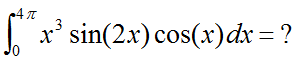
  • button1: 做積分
  • steps數目10000
  • show出結果與執行時間(耗時)
##ReadMore##

using System;
using System.Collections.Generic;
using System.ComponentModel;
using System.Data;
using System.Drawing;
using System.Linq;
using System.Text;
using System.Windows.Forms;
using System.Diagnostics;

namespace examination_2
{
    public partial class exam2 : Form
    {

        Stopwatch stopWatch = new Stopwatch();

        public exam2()
        {
            InitializeComponent();
        }

        private void Form1_Load(object sender, EventArgs e)
        {

        }

        private void button1_Click(object sender, EventArgs e)
        {
            // Start Watch
            stopWatch.Reset();
            stopWatch.Start();

            // Integration
            int steps = 10000;
            double ans = 0;
            double x, fx;
            double en = 4 * Math.PI;
            double bn = 0;
            double parti = (en - bn) * 1 / steps;

            for (int i = 0; i < steps; i++)
            {
                x = bn + parti * i;
                fx = x * x * x * Math.Sin(2 * x) * Math.Cos(x);
                ans = ans + fx * parti;
            }

            // Stop Watch
            stopWatch.Stop();

            // Show timesapn and Answer
            TimeSpan ts = stopWatch.Elapsed;
            textBox1.Text = ts.ToString();
            textBox2.Text = ans.ToString();
            
        }

        private void pictureBox1_Click(object sender, EventArgs e)
        {

        }

        private void textBox2_TextChanged(object sender, EventArgs e)
        {

        }
    }
}

C#-examination-1

題目要求:
  1. 做 button1 → 讀圖。
  2. 做 button2 → 從左上角劃一綠線,至右下角。
  3. 做 button3 → 中間部位畫一50X150之紅色四邊形。
  4. 做 button4 → 存檔。

##ReadMore##

測試圖檔:https://sites.google.com/site/p501labsite/microsoft-virtual-studio/lena.png?attredirects=0&d=1


using System;
using System.Collections.Generic;
using System.ComponentModel;
using System.Data;
using System.Drawing;
using System.Linq;
using System.Text;
using System.Windows.Forms;
using AForge.Imaging;
using AForge.Imaging.Filters;
using AForge.Imaging.Formats;


namespace examination_1
{
    public partial class exam1 : Form
    {
        //statement
        Bitmap img_L, img_R;
        Color colorPixel;
        int[,] maR = new int[1024, 1024];
        int[,] maG = new int[1024, 1024];
        int[,] maB = new int[1024, 1024];

        public exam1()
        {
            InitializeComponent();
        }

        //Read File
        private void button1_Click(object sender, EventArgs e)
        {
            OpenFileDialog readImg = new OpenFileDialog();
            if (readImg.ShowDialog() == DialogResult.OK)
            {
                img_L = new Bitmap(readImg.FileName);
                img_R = img_L;
                pictureBox1.Image = img_L;
                pictureBox2.Image = img_L;

                // 儲存原圖 colorPixel 
                for (int i = 0; i < img_L.Width; i++)
                {
                    for (int j = 0; j < img_L.Height; j++)
                    {
                        colorPixel = img_L.GetPixel(i, j);
                        maR[i, j] = colorPixel.R;
                        maG[i, j] = colorPixel.G;
                        maB[i, j] = colorPixel.B;
                    }
                }
            }
        }

        //Diagonal Top-left to Bottom-right
        private void button2_Click(object sender, EventArgs e)
        {
            // 對角線之 colorPixel
            for (int i = 0; i <= img_L.Height; i++)
            {
                maR[i, i] = 0;
                maG[i, i] = 0;
                maB[i, i] = 0;
            }

            // paint diagonal
            for (int i = 0; i < img_L.Width; i++)
            {
                for (int j = 0; j < img_L.Height; j++)
                {
                    Color diagonalPixel = Color.FromArgb(maR[i, j], maG[i, j], maB[i, j]);
                    img_R.SetPixel(i, j, diagonalPixel);
                }
            }
            pictureBox2.Image = img_R;

        }

        //Rectangle 50 x 150
        private void button3_Click(object sender, EventArgs e)
        {
            int drawWidth = 50;
            int drawHeight = 150;

            // 中間繪圖點
            int originX = img_L.Width / 2 - drawWidth / 2;
            int originY = img_L.Height / 2 - drawHeight / 2;

            for (int i = originX; i <= originX + drawWidth; i++)
            {
                for (int j = originY; j <= originY + drawHeight; j++)
                {
                    maR[i, j] = 255;
                    maG[i, j] = 0;
                    maB[i, j] = 0;
                }
            }

            // paint rectangle
            for (int i = 0; i < img_L.Width; i++)
            {
                for (int j = 0; j < img_L.Height; j++)
                {
                    Color rectanglePixel = Color.FromArgb(maR[i, j], maG[i, j], maB[i, j]);
                    img_R.SetPixel(i, j, rectanglePixel);
                }
            }
            pictureBox2.Image = img_R;
        }

        //Save File
        private void button4_Click(object sender, EventArgs e)
        {
            saveFileDialog1.FileName = @"img.bmp";
            saveFileDialog1.Filter = "Bitmap File(*.bmp) | *.bmp";
            if (saveFileDialog1.ShowDialog() == DialogResult.OK)
            {
                img_R.Save(saveFileDialog1.FileName);
            }

        }

        private void Form1_Load(object sender, EventArgs e)
        {

        }
    }
}


2016年1月1日 星期五

C# - 影像處理圖片截圖並與原圖匹配找相同部份再繪矩形標示

練習:
  • 截取圖片 crop()
  • 詳細模板匹配 ExhaustiveTemplateMatching()
  • 繪出矩形 Drawing.Rectangle()
  • 加入 Stopwatch() 碼表計數影像處理時間。
說明:
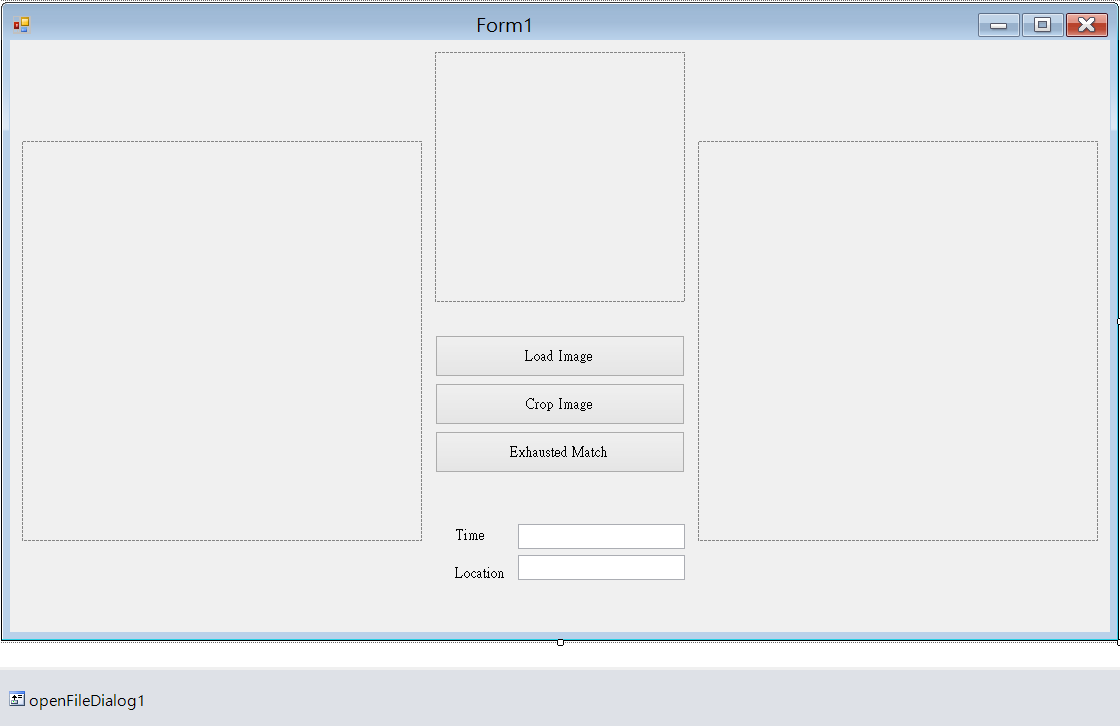
  • 以 crop() 方法截圖,再使用 ExhaustiveTemplateMatching() 比對原圖與截圖兩者相同處,最後用 Drawing.Rectangle() 繪製矩形至原圖來標示所截圖的位置。
  • ExhaustiveTemplateMatching() 需要花用較多的處理時間,本文用兩圖測試花了:3分23秒、52秒。
##ReadMore##

Step1. 檔案 → 新增專案 → Windows Form 應用程式 → 拉物件 Form1.cs[設計] → 撰寫 Form1.cs

Step2. 方案總管 → 參考 → 右鍵加入參考 → 瀏灠(預設路徑) C:\Program Files (x86)\AForge.NET\Framework\Release → 加入參考:
  • AForge.Imaging.dll 
  • AForge.Imaging.Formats.dll

Step3. Windows Form 拉入需要工具:
  • pictureBox × 3
  • button × 3 
  • textBox × 2
  • Label × 2
  • openFileDialog × 1

Step4. Coding
using System;
using System.Collections.Generic;
using System.ComponentModel;
using System.Data;
using System.Drawing;
using System.Linq;
using System.Text;
using System.Windows.Forms;

using System.Drawing.Imaging;
using System.Diagnostics;
using AForge.Imaging;
using AForge.Imaging.Formats;
using AForge.Imaging.Filters;

namespace CropAndMatch
{
    public partial class Form1 : Form
    {
        Bitmap sourceImage, templateImage;
        Stopwatch stopWatch = new Stopwatch();

        public Form1()
        {
            InitializeComponent();
        }

        private void pictureBox3_Click(object sender, EventArgs e)
        {

        }

        private void button1_Click(object sender, EventArgs e)
        {
            openFileDialog1.Filter = "所有檔案(*.*)|*.*";
            if (openFileDialog1.ShowDialog() == DialogResult.OK)
            {
                sourceImage = ImageDecoder.DecodeFromFile(openFileDialog1.FileName);
                pictureBox1.Image = sourceImage;
            }
        }

        private void button2_Click(object sender, EventArgs e)
        {
            Crop filter = new Crop(new Rectangle(100, 150, 128, 128));
            templateImage = filter.Apply(sourceImage);
            pictureBox3.Image = templateImage;

            
        }

        private void button3_Click(object sender, EventArgs e)
        {
            stopWatch.Reset();
            stopWatch.Start();
            // create template matching algorithm's instance
            ExhaustiveTemplateMatching tm = new
            ExhaustiveTemplateMatching(0.99f);
            // find all matchings with specified above similarity
            

            TemplateMatch[] matchings = tm.ProcessImage(sourceImage, templateImage);
            // highlight found matchings
            BitmapData data = sourceImage.LockBits(
            new Rectangle(0, 0, sourceImage.Width, sourceImage.Height),
            ImageLockMode.ReadWrite, sourceImage.PixelFormat);
            foreach (TemplateMatch m in matchings)
            {
                Drawing.Rectangle(data, m.Rectangle, Color.White);

                textBox2.Text = m.Rectangle.Location.ToString();
                // do something else with matching
            }
            sourceImage.UnlockBits(data);
            pictureBox2.Image = sourceImage;
            stopWatch.Stop();
            // Get the elapsed time as a TimeSpan value.
            TimeSpan ts = stopWatch.Elapsed;
            textBox1.Text = ts.ToString();
        }

        private void Form1_Load(object sender, EventArgs e)
        {

        }

        private void textBox1_TextChanged(object sender, EventArgs e)
        {

        }

        private void textBox2_TextChanged(object sender, EventArgs e)
        {

        }
    }
}

C# - 捕捉滑鼠座標及圖片 Pixel RGB 值

練習:
  • 顯示 Window Form 內滑鼠位置座標。
  • 顯示圖片內之滑鼠座標下像素的 RGB 值。
##ReadMore##

Step1. 檔案 → 新增專案 → Windows Form 應用程式 → 拉物件 Form1.cs[設計] → 撰寫 Form1.cs

Step2. 將圖片放至「專案/bin/Debug」目錄內。

Step3. Windows Form 拉入需要工具:
  • pictureBox × 1 
  • button × 1
  • textBox × 5
  • Label × 5
  • openFileDialog × 1

Step4. 於 Form1.cs[設計] → pictureBox1 屬性 → sizeMode 改為 StretchImage。

Step5. Coding Form1.cs
using System;
using System.Collections.Generic;
using System.ComponentModel;
using System.Data;
using System.Drawing;
using System.Linq;
using System.Text;
using System.Windows.Forms;

namespace MouseGraphic
{
    public partial class Form1 : Form
    {

        //Bitmap imgone = new Bitmap("lena.png");
        Bitmap imgone;
        Color colorPixel;

        public Form1()
        {
            InitializeComponent();
        }

        private void Form1_Load(object sender, EventArgs e)
        {
            imgone = new Bitmap("lena.png");
            pictureBox1.Image = imgone;
        }

        private void button1_Click(object sender, EventArgs e)
        {
            OpenFileDialog OpenImage = new OpenFileDialog();
            if (OpenImage.ShowDialog() == DialogResult.OK)
            {
                imgone = new Bitmap(OpenImage.FileName);
                pictureBox1.Image = imgone;
            }
            
        }

        // 自建一個 Mouse Move Listener
        private void imgone_MouseMove(object sender, MouseEventArgs e)
        {
            //顯示滑鼠座標
            textBox1.Text = e.X.ToString();
            textBox2.Text = e.Y.ToString();

            // 當滑鼠進入圖片內時才捉 RGB 值
            if ((e.X < imgone.Width) && (e.Y < imgone.Height))
            {
                //取得pixel的RGB值
                colorPixel = imgone.GetPixel(e.X, e.Y);
                textBox3.Text = colorPixel.R.ToString();
                textBox4.Text = colorPixel.G.ToString();
                textBox5.Text = colorPixel.B.ToString();
            }
        }
    }
}

Step6.
修改 Form1.Designer.cs → 展開全部程式 → 找到「// pictureBox1」分類 →於其下方加入:
            // 
            // pictureBox1
            // 
            this.pictureBox1.MouseMove += new System.Windows.Forms.MouseEventHandler(this.imgone_MouseMove);

C# - 影像處理 RotateBicubic() 做圖片旋轉

練習:
  • 使用 RotateBicubic() 讓圖片旋轉 30 度角。
  • 加入 Stopwatch() 顯示圖片處理所花的時間。
##ReadMore##

Step1. 檔案 → 新增專案 → Windows Form 應用程式 → 拉物件 Form1.cs[設計] → 撰寫 Form1.cs

Step2. 方案總管 → 參考 → 右鍵加入參考 → 瀏灠(預設路徑) C:\Program Files (x86)\AForge.NET\Framework\Release → 加入參考:

  • AForge.Imaging.dll 
  • AForge.Imaging.Formats.dll


Step3. 使用測試圖片:

Step4. Windows Form 拉入需要工具:
  • pictureBox × 2
  • button × 2
  • textBox × 1
  • openFileDialog × 1

Step5. Coding
using System;
using System.Collections.Generic;
using System.ComponentModel;
using System.Data;
using System.Drawing;
using System.Linq;
using System.Text;
using System.Windows.Forms;

using AForge.Imaging;
using AForge.Imaging.Formats;
using AForge.Imaging.Filters;
using System.Diagnostics;

namespace rotateDemo
{
    public partial class Form1 : Form
    {
        public Form1()
        {
            InitializeComponent();
        }

        Bitmap imgone;
        Stopwatch stopWatch = new Stopwatch();

        private void Form1_Load(object sender, EventArgs e)
        {

        }

        private void button1_Click(object sender, EventArgs e)
        {
            openFileDialog1.Filter = "所有檔案(*.*)|*.*";
            if (openFileDialog1.ShowDialog() == DialogResult.OK)
            {
                imgone = ImageDecoder.DecodeFromFile(openFileDialog1.FileName);
                pictureBox1.Image = imgone;
            }
        }

        private void button2_Click(object sender, EventArgs e)
        {
            stopWatch.Reset();
            stopWatch.Start();

            RotateBicubic filter = new RotateBicubic(30, true);

            Bitmap rotateImg = filter.Apply(imgone);
            pictureBox2.Image = rotateImg;

            stopWatch.Stop();
            TimeSpan ti = new TimeSpan();
            textBox1.Text = ti.ToString();
        }
    }
}

C# - 使用 timer 實作一個計數碼表

練習:
  • 使用時間計數器 timer 實作一個碼表,每次增加單位 0.1 秒。
  • 有按鍵 start, stop, reset 做控制。
##ReadMore##

Step1. 檔案 → 新增專案 → Windows Form 應用程式 → 拉物件 Form1.cs[設計] → 撰寫 Form1.cs

Step2. Windows Form 拉入需要工具:
  • Label × 1 
  • button × 3
  • timer × 1

Step3. Coding
using System;
using System.Collections.Generic;
using System.ComponentModel;
using System.Data;
using System.Drawing;
using System.Linq;
using System.Text;
using System.Windows.Forms;

namespace myTimer
{
    public partial class Form1 : Form
    {
        public Form1()
        {
            InitializeComponent();
        }

        double sec;

        private void label1_Click(object sender, EventArgs e)
        {
            
        }

        // Form Init
        private void Form1_Load(object sender, EventArgs e)
        {
            label1.BackColor = Color.Black;
            label1.ForeColor = Color.LightGreen;
            label1.TextAlign = ContentAlignment.MiddleCenter;
            button3_Click(sender, e);
        }

        // Timer
        private void timer1_Tick(object sender, EventArgs e)
        {
            label1.Text = string.Format("{0:0000.0 秒}", sec += 0.1);
        }

        // Start
        private void button1_Click(object sender, EventArgs e)
        {
            timer1.Enabled = true;
        }

        // Stop
        private void button2_Click(object sender, EventArgs e)
        {
            timer1.Enabled = false;
        }

        // Reset
        private void button3_Click(object sender, EventArgs e)
        {
            sec = 0;
            label1.Text = string.Format("{0:0000.0 秒}", sec);
        }
    }
}

C# - 使用碼表 Stopwatch() 測試二維陣列 [i, j] 及 [j, i] 執行時間

宣告一個二維陣列 array[,] 放到兩層 for-loop 裡,並測試:
  • array[i, j] 與 array[j, i] 執行速度上的差別。
  • 使用碼表:Stopwatch() 顯示執行時間。
##ReadMore##

Step1. 檔案 → 新增專案 → Windows Form 應用程式 → 拉物件 Form1.cs[設計] → 撰寫 Form1.cs

Step2. Windows Form 拉入需要工具:
  • textBox × 1
  • button × 1

Step3. Coding
using System;
using System.Collections.Generic;
using System.ComponentModel;
using System.Data;
using System.Drawing;
using System.Linq;
using System.Text;
using System.Windows.Forms;
using System.Diagnostics;

namespace Elapsed_Time
{
    public partial class Form1 : Form
    {
        public Form1()
        {
            InitializeComponent();
        }

        Stopwatch stopWatch = new Stopwatch();


        private void Form1_Load(object sender, EventArgs e)
        {

        }

        private void button1_Click(object sender, EventArgs e)
        {
            stopWatch.Reset();
            stopWatch.Start();

            int maxi = 5000;
            int maxj = 5000;

            int[,] array = new int[maxi, maxj];
            
            for (int i = 0; i < maxi; i++)
            {
                for (int j = 0; j < maxj; j++)
                {
                    /* 測試 Array [i, j] 與 [j, i] 執行速度差異(二選一來執行) */

                    /* [i, j] 會執行比較快 */
                    array[i, j] = i * j;

                    /* [j, i] 比較慢,較花時間 */
                    //array[j, i] = i * j;
                }
            }

            stopWatch.Stop();
            // Get the elapsed time as a TimeSpan value.
            TimeSpan ts = stopWatch.Elapsed;
            textBox1.Text = ts.ToString();
        }

        private void textBox1_TextChanged(object sender, EventArgs e)
        {

        }
    }
}

2015年12月31日 星期四

C# - 影像處理圖片銳化、對比延伸、直方圖均化

練習:
銳化:Sharpen()

對比延伸:ContrastStretch()

直方圖均化:HistogramEqualization()
##ReadMore##

Step1. 檔案 → 新增專案 → Windows Form 應用程式 → 拉物件 Form1.cs[設計] → 撰寫 Form1.cs

Step2. 方案總管 → 參考 → 右鍵加入參考 → 瀏灠(預設路徑) C:\Program Files (x86)\AForge.NET\Framework\Release → 加入參考
  • AForge.Imaging.dll 
  • AForge.Imaging.Formats.dll

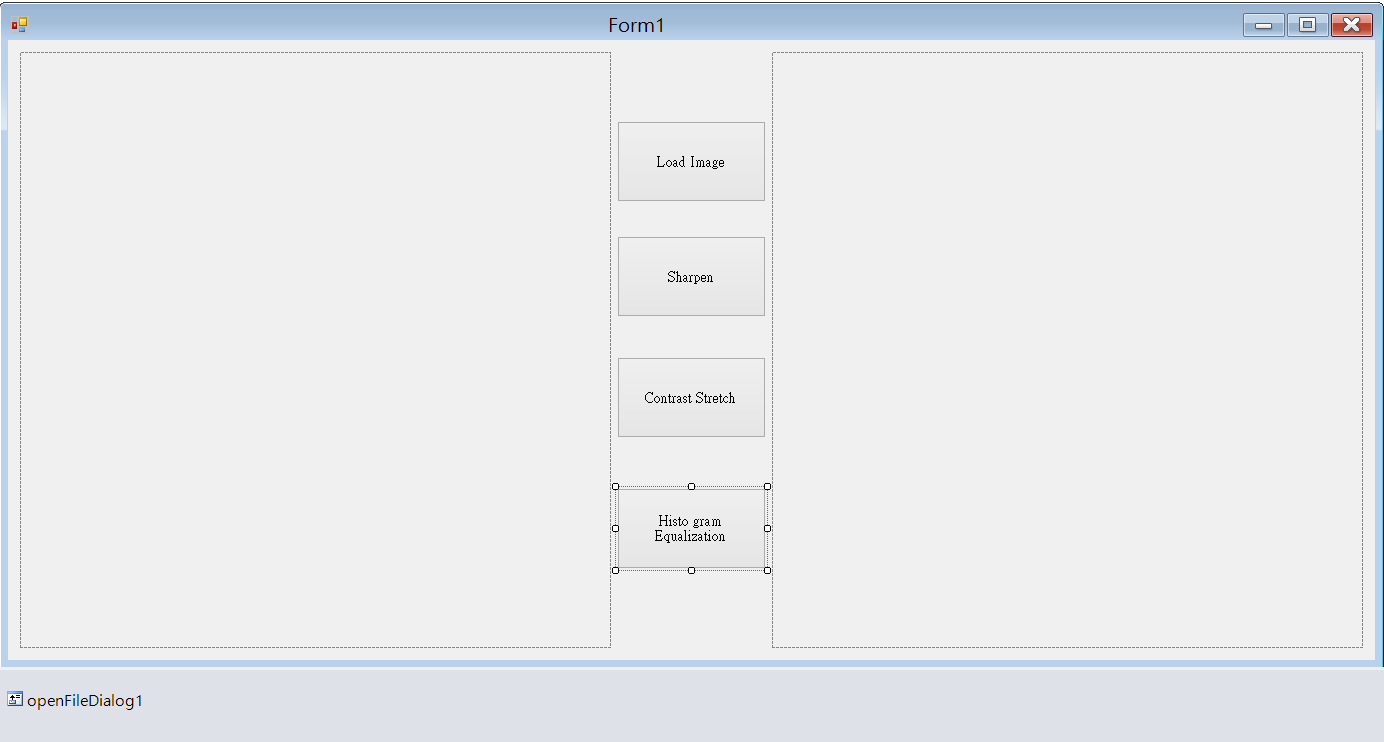
Step3. Windows Form 拉入需要工具:

  • pictureBox × 2
  • button × 4
  • openFileDialog × 1


Step4. Coding
using System;
using System.Collections.Generic;
using System.ComponentModel;
using System.Data;
using System.Drawing;
using System.Linq;
using System.Text;
using System.Windows.Forms;

using AForge.Imaging;
using AForge.Imaging.Formats;
using AForge.Imaging.Filters;

namespace TMV0
{
    public partial class Form1 : Form
    {
        public Form1()
        {
            InitializeComponent();
        }

        Bitmap imgone;

        //Sharpen
        private void button2_Click(object sender, EventArgs e)
        {
            Bitmap img;
            Sharpen filter = new Sharpen();
            img = filter.Apply(imgone);
            pictureBox2.Image = img;
        }

        //Contrast Stretch
        private void button3_Click(object sender, EventArgs e)
        {
            Bitmap img;
            ContrastStretch filter = new ContrastStretch();
            img = filter.Apply(imgone);
            pictureBox2.Image = img;
        }

        //Load Image
        private void button1_Click(object sender, EventArgs e)
        {
            openFileDialog1.Filter = "所有檔案(*.*)|*.*";
            if (openFileDialog1.ShowDialog() == DialogResult.OK)
            {
                imgone =
                ImageDecoder.DecodeFromFile(openFileDialog1.FileName);
                pictureBox1.Image = imgone;
            }
        }

        //Histogram Equalization
        private void button4_Click(object sender, EventArgs e)
        {
            Bitmap img;
            HistogramEqualization filter = new HistogramEqualization();
            img = filter.Apply(imgone);
            pictureBox2.Image = img;
        }

        private void Form1_Load(object sender, EventArgs e)
        {

        }
    }
}

C# - 影像處理圖片灰階、黑白、邊緣化、B-Channel

練習濾鏡(Filter)特效:
  • 灰階 : Grayscale()
  • 黑白(二階):Grayscale() → OtsuThreshold()
  • 邊緣化 : Grayscale() → OtsuThreshold() → CannyEdgeDetector() 
  • B-Channel → ExtractChannel(RGB.B)
##ReadMore##

Step1. 檔案 → 新增專案 → Windows Form 應用程式 → 拉物件 Form1.cs[設計] → 撰寫 Form1.cs

Step2. 方案總管 → 參考 → 右鍵加入參考 → 瀏灠(預設路徑) C:\Program Files (x86)\AForge.NET\Framework\Release → 加入參考
AForge.Imaging.dll
AForge.Imaging.Formats.dll

Step3. Windows Form 拉入需要工具:
  • pictureBox × 2
  • button × 6
  • openFileDialog × 1 
  • saveFileDialog × 1

Step4. coding
using System;
using System.Collections.Generic;
using System.ComponentModel;
using System.Data;
using System.Drawing;
using System.Linq;
using System.Text;
using System.Windows.Forms;

using AForge.Imaging.Formats;
using AForge.Imaging.Filters;
using AForge.Imaging;

namespace Lesson_p90
{
    public partial class Form1 : Form
    {
        Bitmap img1, img2;

        public Form1()
        {
            InitializeComponent();
        }

        private void button1_Click(object sender, EventArgs e)
        {
            openFileDialog1.Filter = "所有檔案(*.*)|*.*";
            if (openFileDialog1.ShowDialog() == DialogResult.OK)
            {
                img1 = ImageDecoder.DecodeFromFile(openFileDialog1.FileName);
                pictureBox1.Image = img1;
            }
        }

        private void button2_Click(object sender, EventArgs e)
        {
            Grayscale filter = new Grayscale(0.2125, 0.7154, 0.0721);
            img2 = filter.Apply(img1);
            pictureBox2.Image = img2;
        }

        private void button3_Click(object sender, EventArgs e)
        {
            Grayscale grayfilter = new Grayscale(0.2125, 0.7154, 0.0721);
            Bitmap grayImg = grayfilter.Apply(img1);

            OtsuThreshold filter = new OtsuThreshold();
            img2 = filter.Apply(grayImg);
            pictureBox2.Image = img2;

        }

        private void button4_Click(object sender, EventArgs e)
        {
            Grayscale grayfilter = new Grayscale(0.2125, 0.7154, 0.0721);
            Bitmap edgeImg = grayfilter.Apply(img1);

            OtsuThreshold filter = new OtsuThreshold();
            filter.ApplyInPlace(edgeImg);

            CannyEdgeDetector filter2 = new CannyEdgeDetector();
            img2 = filter2.Apply(edgeImg);
            pictureBox2.Image = img2;
        }

        private void button5_Click(object sender, EventArgs e)
        {
            ExtractChannel filter = new ExtractChannel(RGB.B);
            img2 = filter.Apply(img1);
            pictureBox2.Image = img2;
        }

        private void button6_Click(object sender, EventArgs e)
        {
            saveFileDialog1.FileName = @"imgone.bmp";
            saveFileDialog1.Filter = "Bitmap file(*.bmp)|*.bmp";
            if (saveFileDialog1.ShowDialog() == DialogResult.OK)
            {
                img2.Save(saveFileDialog1.FileName);
            }
        }
    }
}

C# - 影像處理圖片像素 RGB 值

練習:
  • 使用 getPixel() 方法來截取圖片每點像素,進一步得到該點 RGB 值。
  • 使用 setPixel () 方法來重設圖片。
  • 結合 for-loop。
  • 練習一、將圖片一半斜角變成黑色。
 
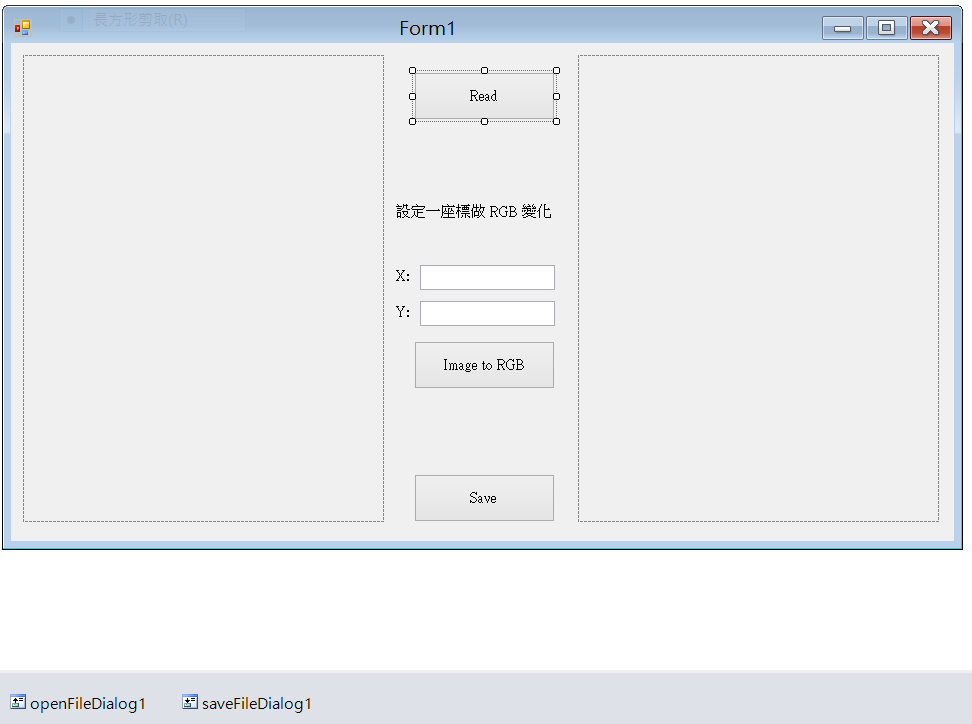
  • 練習二、指定一座標點(單位 pixel),將該點變成黑色。
##ReadMore##

練習一、
Step1. 檔案 → 新增專案 → Windows Form 應用程式 → 拉物件 Form1.cs[設計] → 撰寫 Form1.cs

Step2. 使用圖檔 lena.png 

Step3. 方案總管 → 參考 → 右鍵加入參考 → 瀏灠(預設路徑) C:\Program Files (x86)\AForge.NET\Framework\Release → 加入參考
  • AForge.Imaging.dll
  • AForge.Imaging.Formats.dll

Step4. Windows Form 拉入需要工具:
  • pictureBox × 2
  • button × 4
  • openFileDialog × 1 
  • saveFileDialog × 1

Step5. Coding
using System;
using System.Collections.Generic;
using System.ComponentModel;
using System.Data;
using System.Drawing;
using System.Linq;
using System.Text;
using System.Windows.Forms;

using AForge.Imaging;
using AForge.Imaging.Formats;

namespace Lesson_p49
{
    public partial class Form1 : Form
    {
        Bitmap imgone;
        int[,] maR = new int[1024, 1024];
        int[,] maG = new int[1024, 1024];
        int[,] maB = new int[1024, 1024];

        public Form1()
        {
            InitializeComponent();
        }

        private void Form1_Load(object sender, EventArgs e)
        {
            
        }

        private void button1_Click(object sender, EventArgs e)
        {
            openFileDialog1.Filter = "所有檔案(*.*)|*.*"; 
            if (openFileDialog1.ShowDialog() == DialogResult.OK)
            {
                imgone = ImageDecoder.DecodeFromFile(openFileDialog1.FileName);
                
                pictureBox1.Image = imgone;
            }
        }

        private void button2_Click(object sender, EventArgs e)
        {
            for (int i = 1; i < imgone.Width; i++)
            {
                for (int j = 1; j < imgone.Height; j++)
                {
                    Color pixelColor = imgone.GetPixel(i, j); 
                    maR[i, j] = pixelColor.R;
                    maG[i, j] = pixelColor.G;
                    maB[i, j] = pixelColor.B;
                }
            }
        }

        private void button3_Click(object sender, EventArgs e)
        {
            for (int i = 1; i < imgone.Width; i++)
            {
                for (int j = 1; j < imgone.Height; j++)
                {
                    if (i < j)
                    {
                        maR[i, j] = 0; 
                        maG[i, j] = 0; 
                        maB[i, j] = 0;
                    }
                    Color pixelColor = Color.FromArgb(maR[i, j], maG[i, j], maB[i, j]);
                    imgone.SetPixel(i, j, pixelColor);
                }
            }
            pictureBox2.Image = imgone; 
        }

        private void button4_Click(object sender, EventArgs e)
        {
            saveFileDialog1.FileName = @"imgone.bmp"; 
            saveFileDialog1.Filter = "Bitmap file (*.bmp)|*.bmp"; 
            if (saveFileDialog1.ShowDialog() == DialogResult.OK)
            {
                imgone.Save(saveFileDialog1.FileName);
            } 
        }
    }
}
---
練習二、
Step1. 檔案 → 新增專案 → Windows Form 應用程式 → 拉物件 Form1.cs[設計] → 撰寫 Form1.cs

Step2. 方案總管 → 參考 → 右鍵加入參考 → 瀏灠(預設路徑) C:\Program Files (x86)\AForge.NET\Framework\Release → 加入參考
  • AForge.Imaging.dll
  • AForge.Imaging.Formats.dll
Step3. 編輯 Windows Form
  • pictureBox × 2
  • button × 3
  • openFileDialog × 1 
  • saveFileDialog × 1
  • Label × 2
  • textBox × 2

Step4. coding
using System;
using System.Collections.Generic;
using System.ComponentModel;
using System.Data;
using System.Drawing;
using System.Linq;
using System.Text;
using System.Windows.Forms;

using AForge.Imaging.Formats;
using AForge.Imaging;


namespace RGBshow
{
    public partial class Form1 : Form
    {
        Bitmap imgInput, imgone, imgtwo;
        int[,] maR = new int[1024, 1024];
        int[,] maG = new int[1024, 1024]; 
        int[,] maB = new int[1024, 1024];
        
        public Form1()
        {
            InitializeComponent();

        }

        private void button1_Click(object sender, EventArgs e)
        {
            openFileDialog1.Filter = "所有檔案(*.*)|*.*";
            if (openFileDialog1.ShowDialog() == DialogResult.OK)
            {
                imgone = ImageDecoder.DecodeFromFile(openFileDialog1.FileName);
                imgtwo = imgone;
                pictureBox1.Image = imgone;
                pictureBox2.Image = imgtwo;
                label4.Text = string.Format("({0} × {1})", imgone.Width, imgone.Height);
            }
        }

        private void button5_Click(object sender, EventArgs e)
        {
            saveFileDialog1.FileName = @"imgtwo.bmp";
            saveFileDialog1.Filter = "Bitmap file (*.bmp)|*.bmp";
            if (saveFileDialog1.ShowDialog() == DialogResult.OK)
            {
                imgtwo.Save(saveFileDialog1.FileName);
            } 
        }


        private void button2_Click(object sender, EventArgs e)
        {
            //Get textBox input value
            int x = int.Parse(textBox1.Text);
            int y = int.Parse(textBox2.Text);
                        
            //保存原圖像素顏色            
            for (int i = 1; i < imgone.Width; i++)
            {
                for (int j = 1; j < imgone.Height; j++)
                {
                    Color pixelColor = imgone.GetPixel(i, j);
                    maR[i, j] = pixelColor.R;
                    maG[i, j] = pixelColor.G;
                    maB[i, j] = pixelColor.B;
                }
            }
           
            
            //繪製單點座標(x, y)
            maR[x, y] = 0;
            maG[x, y] = 0;
            maB[x, y] = 0;

            for (int i = 1; i < imgone.Width; i++)
            {
                for (int j = 1; j < imgone.Height; j++)
                {
                    Color pixelColor = Color.FromArgb(maR[i, j], maG[i, j], maB[i, j]);
                    imgtwo.SetPixel(i, j, pixelColor);
                }
            }
            pictureBox2.Image = imgtwo; 
        }

        private void textBox1_TextChanged(object sender, EventArgs e)
        {

        }

        private void textBox2_TextChanged(object sender, EventArgs e)
        {

        }

        private void Form1_Load(object sender, EventArgs e)
        {

        }


    }
}

C# - 載入 AForge 參考實作「讀取」及「另存」圖片

練習:
  • 載入 AForge.NET 參考
  • 實作 openFileDialog 讀圖
  • 實作 saveFileDialog 存圖
其中讀圖的方式可以:
  1. 開啟檔案「手動」瀏灠器載入圖。
  2. 以絕對路徑「自動」載入圖。
  3. 將圖放至專案/bin/Debug 目錄內「自動」載入圖。
##ReadMore##

Step1.
檔案 → 新增專案 → Windows Form 應用程式 → 拉物件 Form1.cs[設計] → 撰寫 Form1.cs

Step2.
方案總管 → 參考 → 右鍵加入參考 → 瀏灠(預設路徑) C:\Program Files (x86)\AForge.NET\Framework\Release → 加入參考
  • AForge.Imaging.dll
  • AForge.Imaging.Formats.dll

Step3.
拉入 Windows Form:
  • pictureBox × 1
  • button × 4
  • openFileDialog × 1
  • saveFileDialog  × 1

Step4. Coding
using System;
using System.Collections.Generic;
using System.ComponentModel;
using System.Data;
using System.Drawing;
using System.Linq;
using System.Text;
using System.Windows.Forms;

using AForge.Imaging;
using AForge.Imaging.Formats;


namespace Lesson_8
{
    public partial class Form1 : Form
    {
        Bitmap imgone;

        public Form1()
        {
            InitializeComponent();
        }

        private void button1_Click(object sender, EventArgs e)
        {
            // 手動讀圖 → 開啟檔案瀏灠器
            openFileDialog1.Filter = "所有檔案(*.*)|*.*";
            if(openFileDialog1.ShowDialog()==DialogResult.OK){
                imgone =ImageDecoder.DecodeFromFile(openFileDialog1.FileName); 
                pictureBox1.Image = imgone;
            }
        }

        private void button2_Click(object sender, EventArgs e)
        {
            saveFileDialog1.FileName = @"imgone.bmp";
            saveFileDialog1.Filter = "Bitmap file(*.bmp)|*.bmp";
            if (saveFileDialog1.ShowDialog() == DialogResult.OK)
            {
                imgone.Save(saveFileDialog1.FileName);
            }
        }

        private void button3_Click(object sender, EventArgs e)
        {
            // 自動讀圖 → 絕對路徑
            imgone = ImageDecoder.DecodeFromFile(@"D:\Visual C Sharp\Img\lana.png");
            pictureBox1.Image = imgone;
        }

        private void button4_Click(object sender, EventArgs e)
        {
            // 自動讀圖2 → 圖檔要放至「專案/bin/Debug」目錄
            imgone = ImageDecoder.DecodeFromFile("lana.png");
            pictureBox1.Image = imgone;
        }

        private void Form1_Load(object sender, EventArgs e)
        {

        }
    }
}

C# - 練習 textBox 及 button 做等差相加、等差相乘

練習 textBox 及 button 做:
  • 等差相加( textBox1 累加到 textBox2)
  • 等差相乘( textBox1 累乘到 textBox2)
##ReadMore##
檔案 → 新增專案 → Windows Form 應用程式 → 拉物件 Form1.cs[設計] → 撰寫 Form1.cs
拉入 Windows Form :
  • textBox × 4
  • Label × 5
  • button × 1
程式:
using System;
using System.Collections.Generic;
using System.ComponentModel;
using System.Data;
using System.Drawing;
using System.Linq;
using System.Text;
using System.Windows.Forms;

namespace test2
{
    public partial class Form1 : Form
    {
        public Form1()
        {
            InitializeComponent();
        }

        private void button1_Click(object sender, EventArgs e)
        {
            int sum=0, inputA, inputB;
            long multiplied = 1;
            inputA = int.Parse(textBox1.Text);
            inputB = int.Parse(textBox2.Text);
            for (int i = inputA; i <= inputB; i++)
            {
                sum = sum + i;
            }
            
            for (int j = inputA; j <= inputB; j++)
            {
                multiplied = multiplied * j;
            }
             
            textBox3.Text = sum.ToString();
            textBox4.Text = multiplied.ToString();
        }

        private void textBox1_TextChanged(object sender, EventArgs e)
        {

        }

        private void textBox2_TextChanged(object sender, EventArgs e)
        {

        }
    }
}
C# - 做猜數字遊戲 (1~20)

練習做一個猜數字文字遊戲:
  • 數字範圍 1~20
  • 只能猜 5 次
  • 計算所猜數字總合之平均
##ReadMore##
using System;
using System.Collections.Generic;
using System.Linq;
using System.Text;

namespace test01
{
    class Program
    {
        static void Main(string[] args)
        {
            int min = 1, max = 20;
            Random r = new Random();
            int ans = r.Next(min, max);
            int count = 0;
            int sum = 0;
            float average = 0.0f;
            int[] guess = new int[5];
            
            Boolean flags = false;

            Console.WriteLine("ans {0}", ans);

            Console.WriteLine("亂數產生 1~20 整數,猜一個數…");
            while (flags == false)
            {
                if (count >= 5)
                {
                    Console.WriteLine("=============================");
                    Console.WriteLine("五次機會用完了!");
                    flags = true;
                }
                else
                {
                    Console.WriteLine("------------ 猜第 {0}/5 次 ---------------", count+1);
                    Console.WriteLine("猜測範圍 {0}~{1}:", min, max);
                    guess[count] = int.Parse(Console.ReadLine());

                    if (guess[count] == ans)
                    {
                        Console.WriteLine("Bingo !");
                        flags = true;
                    }
                    else if (guess[count] < ans)
                    {
                        Console.WriteLine("猜太小,再猜一次");
                        min = guess[count];
                    }
                    else if (guess[count] > ans)
                    {
                        Console.WriteLine("猜太大,再猜一次");
                        max = guess[count];
                    }
                    count++;
                }
            }
            Console.WriteLine("========= 遊戲結束 =========");
            Console.Write("你猜的數目分別是:");
            for (int i = 0; i < count; i++)
            {
                Console.Write("{0} ", guess[i]);
                sum = sum + guess[i];
            }
            average = sum / count;
            Console.Write(",平均:{0}", average);
            Console.Read();
        }
    }
}